Install AirMirror
Run the installer and follow the Windows prompts. Receiver components are included.
 AirMirror by Fonias
Bring your iPhone screen to a bigger display. AirMirror turns your Windows PC into an AirPlay receiver—with one app and one tray icon.
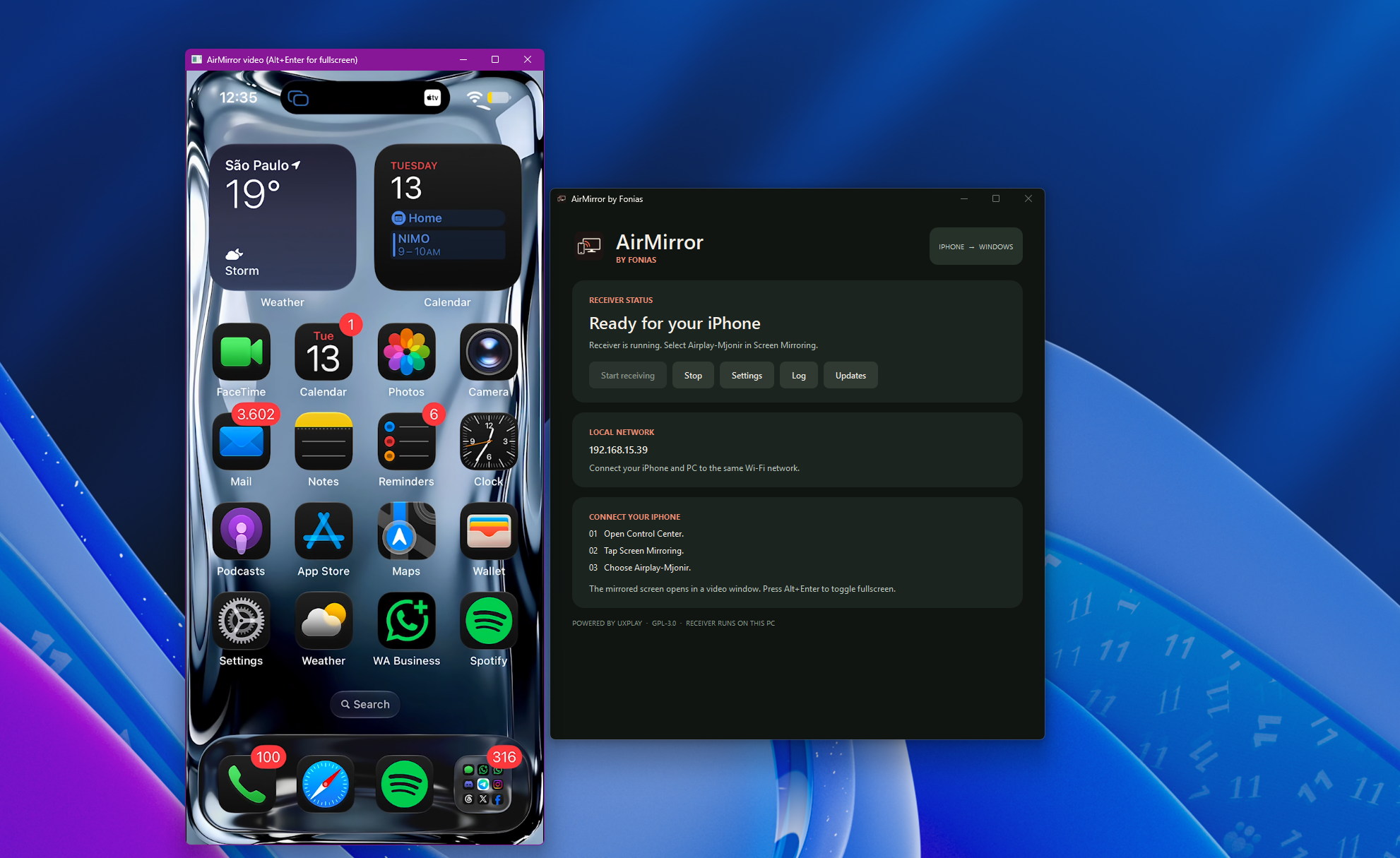
The Windows installer sets up AirMirror and its bundled receiver components.
No cables, no separate UxPlay app. Just connect both devices to your local network and start mirroring.
Run the installer and follow the Windows prompts. Receiver components are included.
Connect your iPhone and PC to the same Wi-Fi network, then open AirMirror.
Open Control Center on your iPhone and choose the AirMirror receiver name.
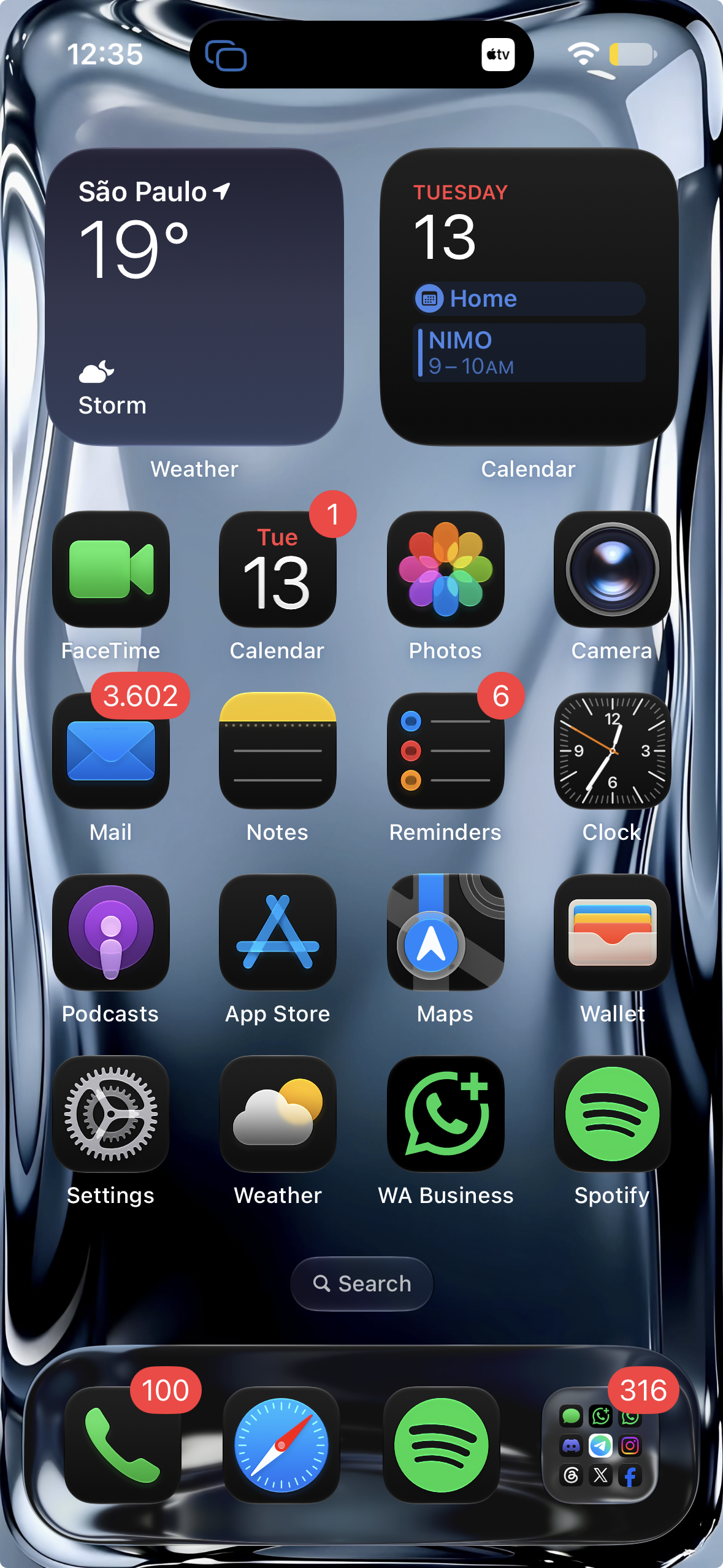
This is an actual AirMirror capture from Windows: an iPhone Home Screen mirrored in the receiver window. Portrait stays portrait, just as the phone sends it.
See the latest release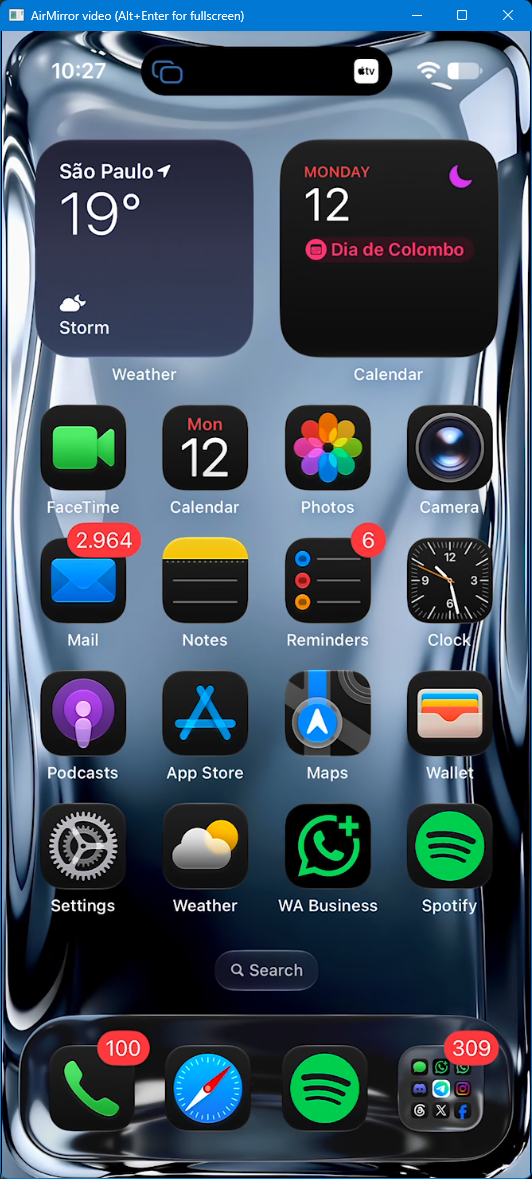
AirMirror wraps the receiver, controls, settings, and updates in a single Windows app.
UxPlay's receiver runs inside AirMirror. Start, stop, configure, and quit from the app or its tray menu.
Choose a video renderer, resolution, frame rate, audio output, and more from a clear settings window.
AirMirror checks for new stable versions and lets you download an update when one is available.
Windows 10 or 11 · x64
AirMirror is made for 64-bit Windows PCs.
Same local network
Your iPhone and PC need to reach each other over Wi-Fi or Ethernet.
Bonjour and Firewall
Windows may ask to allow network access. AirMirror can offer Bonjour setup if discovery support is missing.
AirMirror brings your iPhone's AirPlay video stream to Windows while keeping the setup in one app.
No. The receiver runs inside AirMirror, so you don't need a separate UxPlay installation or its tray app. Bonjour may be installed as a Windows service to support local device discovery.
AirMirror displays the video stream sent by iOS and preserves its aspect ratio. The iPhone chooses the stream resolution, and some protected video or app content may behave differently.
Check that both devices are on the same network, AirMirror is running, Bonjour Service is available, and Windows Firewall allows AirMirror on your local network. Guest Wi-Fi or client isolation can block discovery.
AirMirror checks GitHub for stable releases. When an update is available, you can start the installer from the app; Windows asks for administrator approval before applying it.
No. AirMirror is an independent Windows application. AirPlay and iPhone are Apple trademarks.